As seen from the Introductory chapter, ASP.NET provides an object-oriented approach to Web development. For example, each ASP.NET page is itself an object, and each ASP.NET page can contain many objects (Web controls) that expose different methods, properties, and events.
Further to the object-oriented approach that ASP.NET takes, various events fired by an ASP.NET page or its constituent controls (objects themselves) are handled by event handlers. These are custom functions that are executed when some event occurs for a given control.
The .NET Framework contains the System.UI.Web.Page class to serve as an abstraction for an actual ASP.NET page containing events, properties, and methods that represent an ASP.NET page.
One of the direct consequences of following an object-oriented approach with ASP.NET development is that new development (object-oriented) techniques must be used. This chapter focuses on these new techniques that are new to ASP.NET page development.
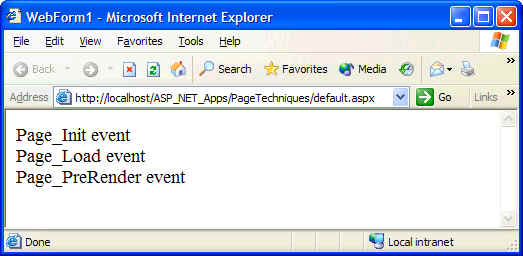
As discussed above, an actual ASP.NET page is an instance of the Page class from the System.UI.Web namespace. The Page class contains a number of events that are fired each time an ASP.NET page is loaded. These Page-level events occur in the following sequence:
The following code illustrates:
public class Default : System.Web.UI.Page
{
. . .
private void InitializeComponent()
{
this.Load += new
System.EventHandler(this.Page_Load);
this.Init += new System.EventHandler(
this.Page_Init);
this.PreRender += new
System.EventHandler( this.Page_PreRender);
}
/* Event handlers - by order of
invocation */
private void Page_Init(object sender, System.EventArgs e)
{
Response.Write( "Page_Init event" );
Response.Write( "<BR>");
}
private void Page_Load(object sender, System.EventArgs e)
{
Response.Write( "Page_Load event" );
Response.Write( "<BR>");
}
private void Page_PreRender(object sender, System.EventArgs e)
{
Response.Write( "Page_PreRender event" );
Response.Write( "<BR>");
}
}
Note that after the PreRender event handler is called, the Page class instance saves its state information in the view state. After that, the page is ready to render itself and does so via the protected Render method. Finally, when the page has been completely rendered, the Unload event fires. If you need to complete any clean up tasks, the Unload event handler is the place to perform these cleanup.
With classic ASP, there were two techniques to obtain user input via forms:
With ASP.NET, the first is now obsolete and should not be used. The second technique is now much easier in ASP.NET because a developer can programmatically check a Page property to determine whether the form has been posted back or not. This property is conveniently called IsPostBack. Often, you will want to take some different action in your page if the form has been posted back.
In general, there are at least two techniques in ASP.NET to handle forms:
Both techniques are shown below.
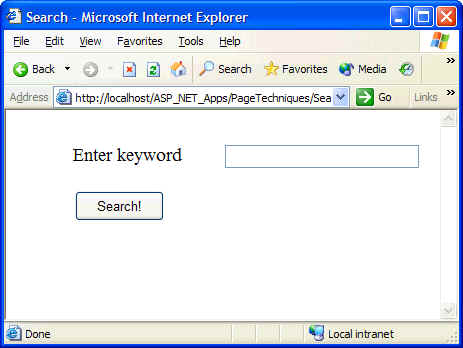
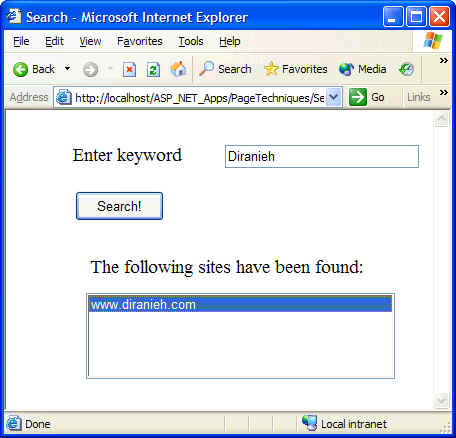
For example, assume you have a search page that accepts search criteria from the user, then uses post back to send back to the user a collection of URLs that match the search criteria. This is an ideal use of a post back. When using postbacks in ASP.NET, the common technique is to place code that should fire when a form is posted back in the Page Load event handler. And because this event handler fires every time the page is visited, we need to have an if block that examines Page.IsPostBack property. Code that should execute when the form is posted back should then be placed inside that block.
The following shows code and results for a very simple implementation of a search page:
<!-- Width, Height and Style
attribute are removed to make code more readable -->
<%@ Page language="c#" Codebehind="Search.aspx.cs" AutoEventWireup="false" Inherits="PageTechniques.Search" %>
...
<form id="Search" method="post" runat="server">
<!-- Used to collect search criteria
-->
<asp:Label id="lblEnterKeyword" runat="server"
>Enter keyword</asp:Label>
<asp:TextBox id="txtKeyWord" runat="server"
></asp:TextBox>
<asp:Button id="btnSearch" runat="server" Text="Search!"></asp:Button>
<!-- Used to display results.
Initially hidden, but made visible when the form is posted back -->
<asp:Label id="lblResults" runat="server" Visible="False"></asp:Label>
<asp:ListBox id="lbResults" runat="server"
Visible="False"></asp:ListBox>
</form>
/* From the PageTechniques.Search
class */
private void Page_Load(object sender, System.EventArgs e)
{
// Check to see if the form has posted back. If so, search for
// data and return back to user
if (this.IsPostBack)
{
/* Search code comes here ...*/
// Show hidden controls that will show results
lblResults.Visible = true;
lblResults.Text = "The following sites have been found:";
lbResults.Visible = true;
lbResults.Items.Add( "www.diranieh.com" );
}
}
Checking the Page.IsPostBack property in the Page Load event handler is one way of running code when the ASP.NET page has been posted back. Another technique is to add Click event handler for the submit button and perform specific code inside that handler:
/* From the PageTechniques.Search
class. In the Page_Load event handler shown above, the IsPostBack code block
should be commented */
private void btnSearch_Click(object sender, System.EventArgs e)
{
/* Search code comes here ...*/
// Show hidden controls that will show results
lblResults.Visible = true;
lblResults.Text = "The following sites have been found (button click):";
lbResults.Visible = true;
lbResults.Items.Add( "www.diranieh.com" );
}
This is because when the user clicks the button, the form is automatically posted back to the server (because of runat="server" attribute for the button) and the Click event is fired. The Click event handler, btnSearch_Click, is then invoked and results sent back to the user. Note that the btnSearch_Click event handler does not use IsPostBack because this handler is only fired when the user clicks on the Search button.
Because ASP.NET Web controls (such as <asp:textbox> and <asp:button> ) exist as classes in the .NET Framework, they each have their own events. As shown for the Button Click event handler, events for Web controls can be easily wired up to custom event handlers. The Properties window in Visual Studio.NET makes it very easy to select events and add handlers with a few mouse clicks. Basically, VisualStudio.NET adds an event handler via the event delegate and creates an empty event handler function in the code behind module.
However, there is one confusing aspect to all this. Suppose you have a check box and you added an event handler for the CheckBoxChanged event. But when will this event fire? It will not fire immediately when you check/uncheck the box because all Web control cannot fire events until the form has been posted back to the server. Keep this in mind when you check/uncheck a check box. This event will fire only when the form has been posted back
Often it is required to dynamically generate images as part of the functionality of a reporting page. This was an impossible task in ASP without the help of third party tools. However, in ASP.NET this process has been made easy and simple. The .NET Framework contains an extensive drawing API in the System.Drawing namespace and its derivatives. When an image is created in the .NET Framework, it is created as an in-memory image. Methods can be used to send this image to disk on the Web server or to a stream such as the Response stream. The magic of saving images to the Web server's disk or sending them back to the client is made possible by the Image.Save method. This method can accept a fully qualified path telling it where to save the image, and it can also accept a Stream object where it will send the image to the Stream rather than to the disk. This stream can then be send back to the user.
The ASP.NET Response object has a number of new properties, and one of these new properties is OutputStream. Response.OutputStream property provides programmatic access to data being sent to the client's browser. The combination of Image.Save and Response.OutputStream can be used to send dynamically created binary-images to the client's browser.
Ideally, it would be very nice to be able to display both content and dynamically generated images on the same page. However, this cannot be done using a single ASP.NET page because any Response.Write would send the browser the text-based content and the binary data for the image. Therefore, if you want to display textual content and a dynamically-generated image, you must create a standard HTML or ASP.NET page and then refer to the dynamic image content using the <img> tag.
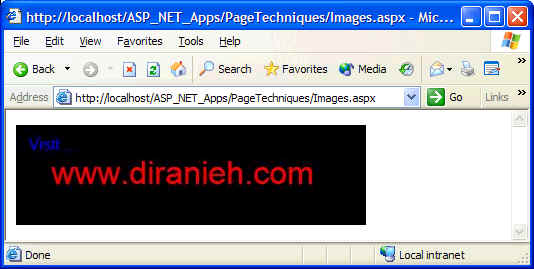
In the following example, the code behind Page_Load event handler calls CreateImage which sends text via Response.Write() and then creates and sends an image back to the client. The output of the following code is shown immediately after it:
private void CreateImage()
{
/* This line will screw output */
Response.Write ("Here is my log") ;
// Create an image from a bitmap
Bitmap oBmp = new Bitmap( 350, 100 );
Graphics g = Graphics.FromImage( oBmp );
g.DrawString("Visit ...", new Font("Arial", 12), System.Drawing.Brushes.Blue, 10, 10);
g.DrawString("www.diranieh.com", new Font("Arial", 24), System.Drawing.Brushes.Red, 30,30 );
// Now set up the response and send back to client
Response.ContentType = "image/jpeg";
oBmp.Save( Response.OutputStream, System.Drawing.Imaging.ImageFormat.Jpeg );
// Clean up
oBmp.Dispose();
g.Dispose();
}
But if you comment out the Respone.Write() method, you get an image as expected:
But what if you want to display textual context with the image? Another .aspx file is needed. This file contains the textual context to be displayed as well as the image to be rendered:
<body MS_POSITIONING="GridLayout">
<form id="ImageDisplay" method="post" runat="server">
This is my logo
<img src="Images.aspx" border="1" />
</form>
</body>
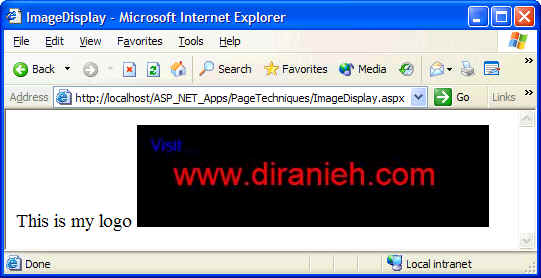
The .NET Framework contains two classes found in System.Web.Mail namespace to assist in sending emails. The first class, MailMessage represents an email message as an object and hence defines various properties of the message itself, such as body, header, subject, and so on. The second class, SmtpMail, performs the work of actually sending the message. To send message through your ASP.NET pages you must have IIS with SMTP Service installed on the Web server machine. The following shows a typical implementation for sending email:
/* Code behing */
private void SubmitOrder()
{
// System.Web.Mail namespace
// Set up the actual message
MailMessage obMsg = new MailMessage();
obMsg.BodyFormat = MailFormat.Html;
obMsg.To = "JoeSmith@nowhere.com";
obMsg.From = "Customer Support";
obMsg.Subject = "Your email order";
obMsg.Body = "blah blah blah ... ";
obMsg.Priority = MailPriority.Normal;
// Now send the message
System.Web.Mail.SmtpMail.Send( obMsg );
}
The .NET Framework contains many classes to aid with accessing the network. All of these classes are located in the System.Net namespace. A very common need for Web developers is to access the HTML content of a Web page from a remote server. For example, you may want to grab certain portions of that page and display it in your own page. To assist with this task (and many others), the .NET Framework provides the WebClient class to access information across the Internet:
/* Grabs an HTML page */
private void btnGo_Click(object sender, System.EventArgs e)
{
// Grab the URL
string strURL = txtURL.Text;
// Create a WebClient object to access the Internet (System.Net)
System.Net.WebClient obWebClient = new WebClient();
// Now read datafrom the given URL
byte[] aData = obWebClient.DownloadData( strURL );
// Convert data into HTML
System.Text.UTF8Encoding obEncoding = new System.Text.UTF8Encoding();
string strHTML = obEncoding.GetString( aData );
// Now display data
Label2.Text = strHTML;
}
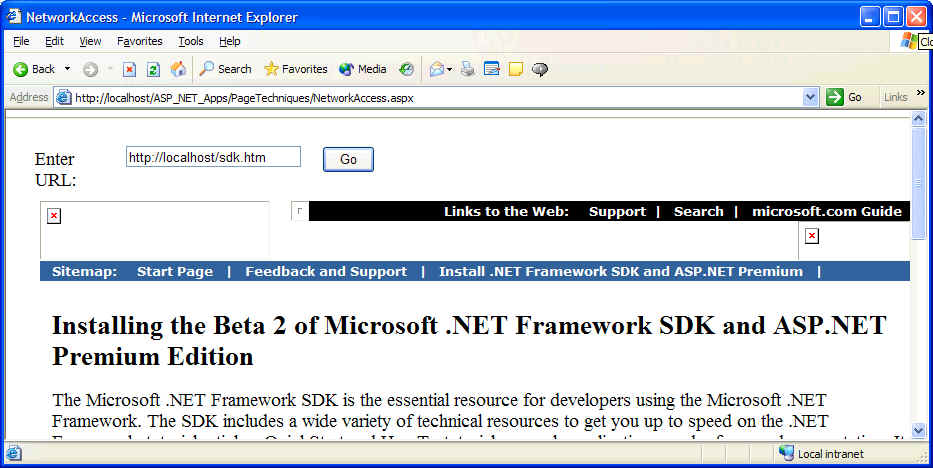
Another very useful class in System.NET is the DNS class. This class can be used to resolve DNS hostnames to IP addresses. Such a technique can be used to verify the validity of an email address by ensuring that the domain name supplied by the user actually exist. Of course, the only way to truly guarantee that the user entered a valid email address is to require him to respond to a confirmation message sent to the address supplied by the user.
The Resolve method of the DNS class resolves a domain name in the form of a string into an instance of IPHostEntry class. If the domain name cannot be resolved into an IP address, a SocketException is thrown. Therefore, always make sure that Resolve is called within a try/catch block.